

You open Instagram for a minute. That minute turns into twenty. Reels autoplay. Stories refresh. Messages load instantly.
It feels effortless.
But behind that smooth experience, your phone is quietly saving pieces of what you see. Not your entire account. Not your full history. Just small chunks designed to make the app faster next time.
Many people search for where Instagram stores data locally because storage fills up or privacy questions start popping up. Both are valid concerns. Once you understand what is happening under the hood, it all makes more sense.
When Instagram stores data locally, it is usually creating temporary files to improve performance. This is commonly referred to as Instagram cache data. Think of it as short term memory for the app. It remembers enough to load quickly, but not enough to replace the cloud.
Here’s what we are going to do in this guide. We will look at how local storage works, where these files sit on Android and iPhone, what Instagram cache data actually includes, and how you can manage it without breaking anything.
Clear. Practical. No myths.
What Local Data Actually Means?
Let’s simplify this.
When people hear that Instagram stores data locally, they often imagine full conversations, passwords, or entire browsing histories sitting openly on the phone. That is not how it works.
Local data simply means information saved directly on your device instead of on Instagram’s servers. It is temporary support material. Think of it like sticky notes your phone keeps so the app does not have to start from zero every time you open it.
Most of this is Instagram cache data. Cache exists for speed. It stores thumbnails, recently viewed images, short video fragments, and interface elements. So when you scroll back to something you just saw, it loads instantly instead of downloading again.
Cloud storage, on the other hand, is where your actual posts, messages, and account details live. That data stays on Instagram’s servers. When Instagram stores data locally, it is not moving your account onto your phone. It is just improving performance.
Here is an easy analogy.
The cloud is the library.
Local storage is the notes you copy into your notebook so you do not have to walk back to the shelf every time.
Over time, Instagram cache data builds up. The more reels you watch, the more stories you open, the more temporary files your phone keeps. None of this is permanent. But it can grow large enough to affect storage space.
So local data is not something mysterious. It is simply short term memory designed for speed, not long term storage.
As a part of Mobile Forensics, Instagram data is also a crucial evidence for investigators.
Where Instagram Stores Data Locally on Android?
Android gives you a bit more visibility compared to iPhone. Not complete access, but enough to understand what is happening.
When Instagram stores data locally on Android, it places most of its files inside the app’s private directory. The typical path looks like this
Internal Storage → Android → data → com.instagram.android
Inside that folder, you will usually find subfolders such as cache and files. This is where Instagram cache data lives.
- The cache folder stores
- Thumbnail images
- Profile picture previews
- Reels and video fragments
- Temporary interface files
These are not your permanent posts or chats. They are performance helpers. When you scroll back to something you just watched, it loads instantly because the file already exists in this local directory.
There is also an app data section managed by the system. That includes login tokens, configuration files, and internal databases. You cannot fully access this without root permission, but Android still shows the total storage used under Settings → Apps → Instagram → Storage.
Over time, Instagram cache data grows based on usage. Heavy reel consumption means larger temporary video fragments. Frequent browsing means more stored thumbnails.

If storage becomes tight, clearing cache removes these temporary files without deleting your account. The app simply rebuilds what it needs next time.
So on Android, when Instagram stores data locally, it does so in a structured app directory designed for speed and controlled access.
Where Instagram Stores Data Locally on iPhone?
iPhone handles app storage differently from Android. Apple uses a sandbox model, which means every app gets its own private container. You cannot casually browse inside it.
When Instagram stores data locally on an iPhone, everything sits inside that protected app container. This includes temporary images, session tokens, small databases, and Instagram cache data used for faster loading.
You will not find a visible folder in the Files app. iOS blocks direct access to another app’s internal storage. That restriction is intentional. It protects user privacy and keeps apps isolated from one another.
So where exactly is it? Technically, Instagram’s local files live in its assigned sandbox directory within the system storage. Users cannot navigate to it without jailbreaking the device. Instead, storage usage is managed through Settings → General → iPhone Storage → Instagram.
If you notice the app size increasing, that growth is usually Instagram cache data building up over time. Reels, story previews, and frequently viewed profiles contribute to that expansion.
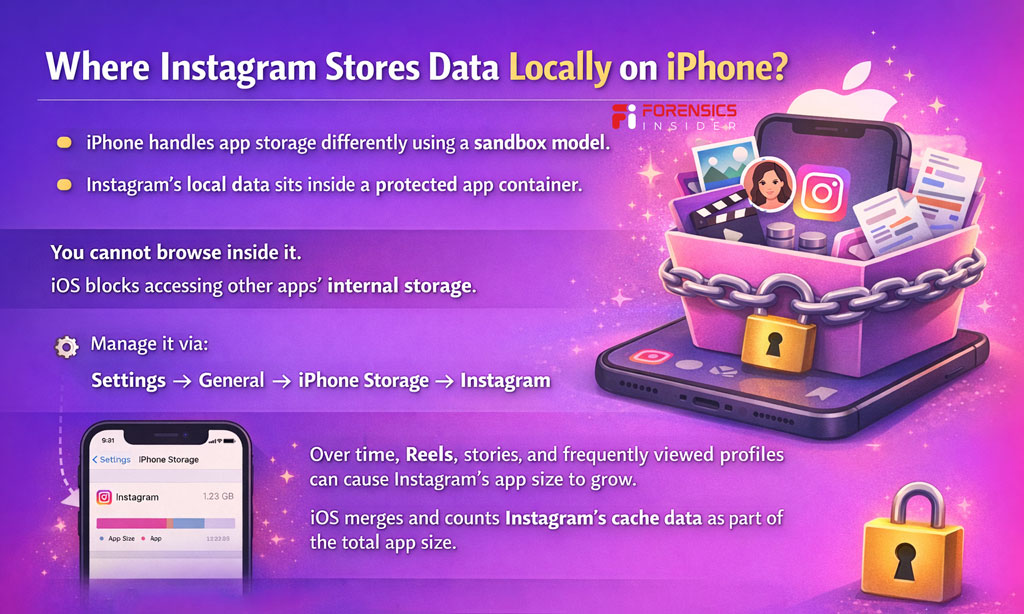
On iPhone, you cannot simply tap a clear cache button inside system settings. To remove locally stored app data completely, you typically delete and reinstall the app. That wipes the sandbox and forces a fresh start.
The key takeaway is simple. When Instagram stores data locally on iOS, it does so inside a sealed container. You cannot browse it directly, but you can control it through storage management options.
What is Instagram Cache Data?
Let’s clear up the confusion first.
Instagram cache data is not your full message history. It is not your passwords. It is not a secret archive of everything you have ever done.
Cache is temporary storage. It exists to make the app faster.
When Instagram stores data locally, it saves small reusable files so the app does not need to download the same content again and again. Think of it like keeping frequently used photos on your desk instead of walking to the cabinet every time.
Instagram cache data can include
- Profile picture thumbnails
- Story preview images
- Reels video fragments
- Search suggestions
- Interface elements like icons and layout files
These files help Instagram load instantly when you reopen it or scroll back to something you just viewed. Without cache, every action would require a fresh download. That would slow everything down and consume more mobile data.
Here is the important distinction. Your actual posts, DMs, followers, and account details live on Instagram’s servers. When Instagram stores data locally, it is only keeping performance related pieces on your phone.
Over time, Instagram cache data grows based on usage. Heavy scrolling, especially reels and video content, increases temporary storage size. That is normal behavior for media heavy apps.
If you clear cache, you remove these temporary files. The app does not break. It simply rebuilds what it needs as you continue using it.
Why Instagram Storage Keeps Growing?
You probably did not upload anything new.
Yet the app size keeps increasing.
Here’s what is happening.
Instagram is media heavy. Every reel you watch, every story you tap, every profile you open pulls in images and video fragments. To keep scrolling smooth, Instagram stores data locally instead of downloading the same content again.
That temporary storage is Instagram cache data.
Now imagine watching 50 reels in one sitting. Each one buffers short video segments. Those fragments sit inside your phone so playback feels instant. Multiply that by daily usage, and storage starts climbing.
Stories work the same way. Thumbnails, preview frames, and profile images are saved briefly for quick access. When Instagram stores data locally, it prioritizes speed and user experience over keeping storage minimal.
Another factor is background updates. App updates can increase core app size. Saved drafts, downloaded media, and shared files inside chats can also add weight.
So the growth is not random. It is usage driven.
Heavy scrolling equals more Instagram cache data.
More cache equals more storage used.
The good news is this buildup is temporary by design. Clear the cache, and most of that extra space disappears. Use the app again, and it slowly builds back up.
It is simply the trade off between performance and storage.
How to Clear Instagram Cache Safely?
If your storage is tight or the app feels heavy, clearing cache is a smart move. You are not deleting your account. You are just removing temporary files.
Remember, when Instagram stores data locally, most of it is Instagram cache data meant for speed. Clearing it forces the app to reload fresh copies next time.
Let’s walk through it properly.
On Android
Go to
Settings → Apps → Instagram → Storage
Tap Clear Cache
That removes temporary files like thumbnails, reel fragments, and interface assets. Your login stays active. Your posts, DMs, and followers are untouched because they live in the cloud.
Do not tap Clear Data unless you want a full reset. That logs you out and removes internal app settings.
On iPhone
iOS does not provide a direct clear cache button. Because Instagram stores data locally inside a sandbox, the only way to fully remove Instagram cache data is to delete the app.
Go to
Settings → General → iPhone Storage → Instagram → Delete App
Then reinstall it from the App Store.
This clears the app container completely. When you log back in, everything syncs again from Instagram’s servers.
What You Lose and What You Keep?
You lose
- Temporary images
- Buffered video fragments
- Search suggestions
You keep
- Your account
- Messages
- Posts
- Followers
Think of it like cleaning a workspace. You are not deleting the project. You are just clearing the desk.
If storage keeps filling up quickly, it usually means heavy usage. In that case, clearing cache occasionally is normal. Not a problem. Just maintenance.
Privacy and Forensic Perspective
Most people think once they close the app, everything disappears.
Not exactly.
When Instagram stores data locally, it leaves behind temporary fragments designed for performance. In normal day to day use, that is harmless. But from a privacy and forensic standpoint, those fragments can matter.
Instagram cache data may contain thumbnails, partial media files, metadata timestamps, and sometimes small database entries tied to app activity. It usually does not store full conversations or complete browsing history. Still, traces can reveal usage patterns.
Here is what that means in practical terms.
For everyday users, local storage mainly affects space and device cleanliness. If privacy is a concern, clearing Instagram cache data reduces leftover temporary files. It does not erase cloud stored information, but it removes device level remnants.
From a forensic perspective, investigators sometimes examine residual app storage to determine
- When the app was used
- Whether media was viewed recently
- If cached media fragments exist
- Approximate activity timelines
Even when Instagram stores data locally only for speed, timestamps and metadata can provide contextual clues. It is rarely dramatic evidence. It is usually supporting evidence.
Another important detail. iPhone sandboxing limits direct access without advanced extraction methods. Android devices may expose more visible directory structures, depending on security level.
So the privacy angle is simple. Cache is temporary, but not invisible.
If your goal is minimal device traces, periodic cache clearing helps.
If your goal is investigation, even temporary data can tell a story.
Small fragments, when placed in context, often say more than people expect.
Final Takeaway
Instagram feels lightweight when you use it. Fast. Instant. Smooth.
That smoothness is not magic. When Instagram stores data locally, it is quietly building short term memory on your phone. Most of that memory is Instagram cache data designed to reduce loading time and save bandwidth.
Nothing dramatic. Nothing secret. Just performance logic.
Over time, those temporary files grow. Heavy scrolling, especially reels and stories, increases local storage usage. That is normal behavior for media driven apps.
If storage becomes tight, clearing Instagram cache data is safe. You are not deleting your account or messages. You are simply removing temporary files so the app can rebuild them as needed.
From a privacy angle, local data is limited but not invisible. Temporary fragments may remain until cleared. For most users, that is not a concern. For investigative scenarios, even small traces can provide context.
So here is the practical view.
If everything runs smoothly and storage is fine, you do not need to obsess over it.
If space is low or you prefer minimal device traces, clear the cache occasionally.
Once you understand where Instagram stores data locally and why it does it, you are no longer guessing about storage spikes or privacy myths.
You know what is happening behind the screen. And that clarity makes all the difference.